
(Read the newsletter containing this article.)
We’ve noticed that quite a few of our customers are buying new computers, and a frequent question for our tech support specialists is how to move a TimePilot system to a new PC. We covered this topic in an article three years ago, and we’re re-running it to (we hope) save you a support call or email.
You bought a new computer? Congratulations!
After it’s all unpacked and set up and Windows 10 is updated (you did do that, didn’t you?), you probably want to get TimePilot installed and running.
Basically, the TimePilot software has two major pieces: the database and TimePilot Central, which works with the database. If you have a network server, the database is probably on the server and TimePilot Central is on a PC. If you don’t have a network, both pieces are probably on a single PC.
(Note: These instructions assume you want to continue using your current database, which contains all your employees’ information. If you want to start again from scratch, see the Quick Start Guide that came with your system or download one at our web site’s Support Center.)
If you’re not sure where your TimePilot database is, start TimePilot Central on the old computer. Click the “Help” menu, then “About.” The “Data Path” indicates its location. (This is why we suggested you temporarily keep TimePilot Central on the old PC.)
Here’s how to make the move:
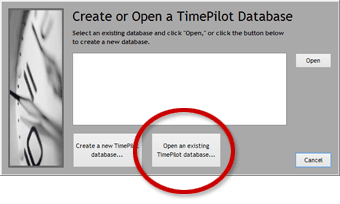 The first thing the new installation will do is ask you if it should create a new TimePilot database or if you want to use an already established one. Click the “Open an Existing TimePilot Database” button (see screenshot at right) and navigate to the database you pasted onto the hard drive in Step 1 or to the database on your server. See the sidebar, “Where’s My Database?” if you aren’t sure where it is.
That’s it. Now you can log in to TimePilot Central and start working. Enjoy your new computer!